Hotel Lobby in CapCut: From Media Slots to Export
Use a specific two-clip, 9:16 template to plan your media, crop faces correctly, balance audio and check the exported video.
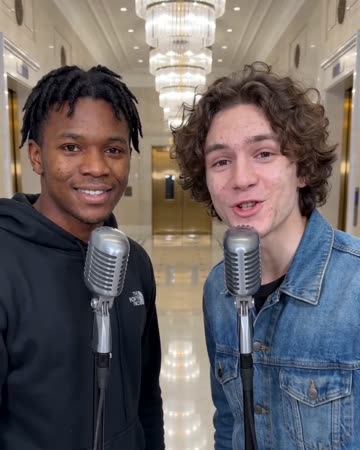
Identify the template first
Hotel Lobby is a search term, not one universal CapCut template. This walkthrough uses Itssyaa’s Hotel Lobby template, published April 21, 2025. Its official listing specifies two clips and a 9:16 aspect ratio. Watch that particular preview before preparing media. Open the template
Two media slots do not mean two character-identity inputs. A template’s name also does not establish that it turns selfies into AI rappers. Check the actual preview and editable options for the transformation it offers.
Prepare two pieces that tell a story
A straightforward sequence is an ordinary photo followed by a stage clip. Keep the people on the same sides so viewers can follow the transition.
For video inputs, identify the useful moments before importing: a look toward the camera in the first clip, then a complete gesture in the second. A short slot may trim away the moment you intended to show.
If you only have photos, check whether the template accepts them and how they appear. When you need a moving performance, generate or record that clip first, then use the template to assemble it.
Replace the media
- Follow Use template from the listing. If it opens an app, check the creator and preview again.
- Fill both slots in the intended order: ordinary photo, then transformed clip.
- Review each crop. A vertical frame can remove the outer faces in a wide group photo; keep both people visible before preserving background detail.
- Replace any editable sample names or captions, then play the entire sequence.
CapCut documents different template entry points for web, desktop and mobile. Follow the instructions for your device if its navigation differs. Official template instructions
Give captions and audio separate jobs
Try “Three years of ordinary photos” over the first shot, followed by “Our turn on stage” over the second. Save names or a date for the ending rather than covering faces with all the context at once.
Listen to the source audio and template music separately. If both contain vocals, choose the main voice and lower the competing track. For lip sync, matching the beat alone is insufficient: check the moments when the mouth opens and closes.
Check the export
Play the full preview and inspect framing, text edges, audio and the ending. If CapCut requests Pro access, check for paid resources or export settings. Lowering the resolution does not necessarily remove a requirement caused by a Pro asset. Official export guidance
After exporting, play the saved file in your phone’s gallery. This catches missing text, abrupt trims and audio problems that can be overlooked in the editor.
When the result is not what you expected
- One sample remains: check the second media slot.
- A face is missing: adjust that clip’s crop or choose a wider source image.
- You need a particular performance: use a motion-reference workflow, such as the one in the Higgsfield guide.
- You need a short clip from one photo: follow the Glinno photo workflow, then decide whether template editing adds anything useful.
Template details and official guidance were checked October 28, 2026. Other templates may have different slot counts, controls and charges.
Choose a related video effect
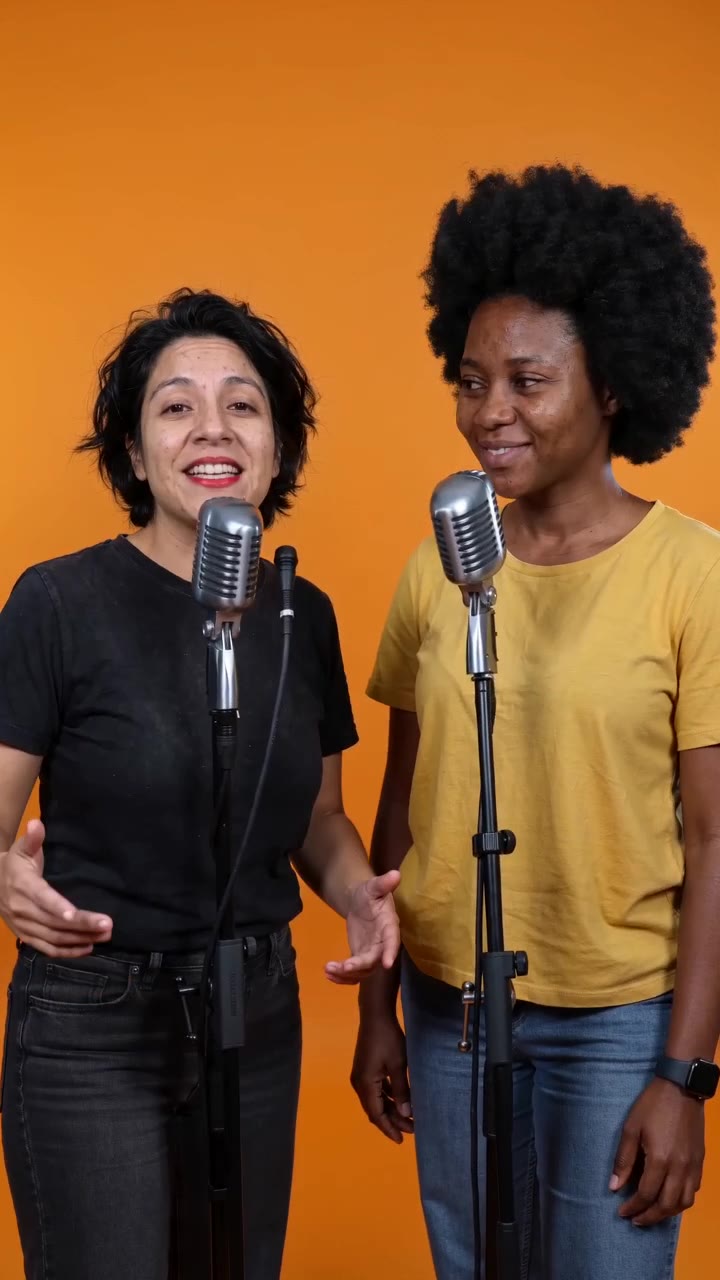
Hotel Lobby AI
Native-audio performance · photo to video
Keep exploring
Choose an AI Music Video Tool: Song to Final Edit
Compare the roles of Suno, Runway, CapCut and Glinno, then plan a 30-second music video around the inputs you already have.
Creative guides
Choose an AI Rap Tool: Song First or Video First?
Compare Suno’s song workflow with Glinno’s photo performance, then prepare your own brief and lyrics.
Creative guides4 Rap Duos: Learn the Exchange Through Their Tracks
Start with OutKast, Mobb Deep, UGK and Run The Jewels, using specific tracks to listen for leads, responses and handoffs.
Creative guides