Make a Hotel Lobby-Style Video from One Photo
Follow Glinno’s photo upload, framing and duration controls, then check the people, sound and downloaded result.
Prepare one usable photo
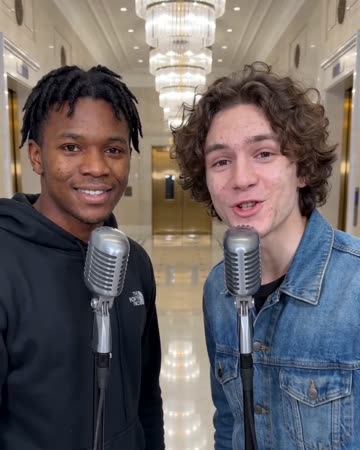
Glinno’s Hotel Lobby preset uses a shared photo to request a short orange-stage performance with original rap audio and accompaniment. Prepare one JPG, PNG or WebP image, up to 5 MB. Both people should already be in that image; the form has no separate portrait inputs.
Choose a half-body photo with similarly sized faces and visible mouths. Check outer shoulders, hands covering faces and the space between people. A wide photo can work, but a later vertical crop may remove someone at the edge.
1. Add the photo
Open the Hotel Lobby effect and find the creation panel below the video preview. Select “Upload a photo”, or choose an existing upload through “Library”.
The panel below shows the upload, framing, duration and generation controls. Use the current cost and balance shown in your account.
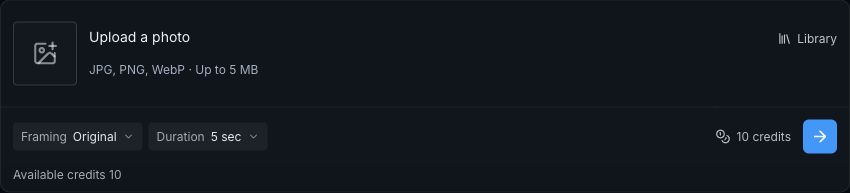
After selecting a file, check its thumbnail before continuing. Fixing the source is easier than spending a generation on the wrong image.
2. Keep both people inside the frame
The framing control offers original, 9:16, 16:9 and 1:1. Original keeps the source composition; the other choices center-crop it. They do not extend the background or recover a person outside the crop.
For a vertical post, try 9:16 and check both faces. If the people stand too far apart, preserve the original ratio or recompose the image before uploading. This is not a free-position crop editor, so the source positions matter.
3. Choose five or ten seconds
Five seconds can carry a brief entrance or reaction. Ten seconds leaves more room for interaction. Neither setting represents a full song.
Check the credit cost in the creation area before generating. Sign in if prompted. If the interface is still checking the cost or shows an unavailable service or insufficient balance, address that condition first.
4. Review in three passes
- Identity: pause near the start, middle and end. Check that faces remain distinct and hands or microphones do not intersect unnaturally.
- Sound: enable playback audio and listen for clear vocals, accompaniment and a complete ending. The preset generates an original short track, not the named commercial song.
- Interaction: watch the listener’s reaction while the other person performs. Check mouth movement against the sound; exact choreography and word-perfect lip sync are not guaranteed.
If one person remains unclear, use a less obstructed photo with equally visible faces. The form has no gesture-strength or lyric field.
5. Download and finish the edit
Save an acceptable result through its download control. Add exact names, dates and greetings as captions in an editor. Record a separate voice line if particular spoken words are essential.
A fifteen-second birthday edit could use three seconds of the original photo, ten seconds of performance and a two-second closing wish. Keep one clear main audio track. Play the exported file on your phone before sharing.
Common questions
Can I use two separate portraits? Combine them into one suitable image first. Dropping two files into the current form does not automatically compose a duo.
Can I specify a song or four written lines? This preset has no such input. Compare other workflows when exact lyrics or reference motion matter.
What should I check after downloading? Look for a black opening frame, a cut-off ending or captions over faces. The final playback is part of finishing the video.
Choose a related video effect
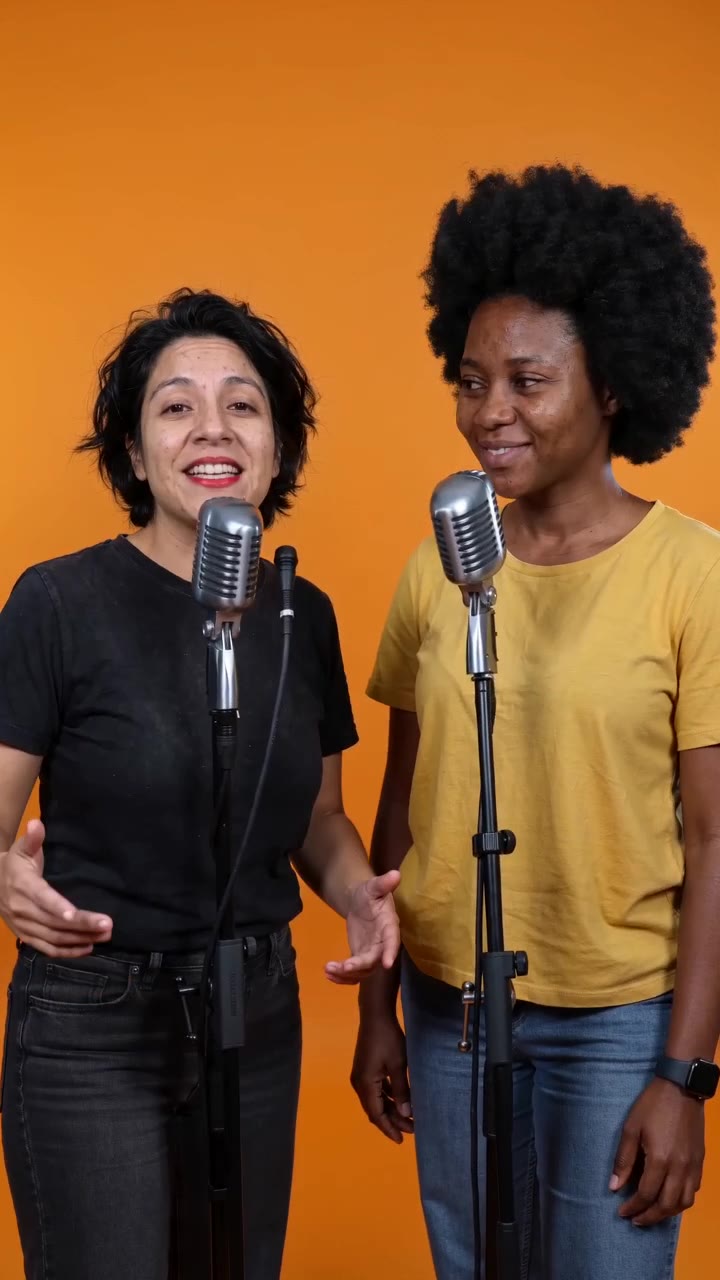
Hotel Lobby AI
Native-audio performance · photo to video
Keep exploring
Choose an AI Music Video Tool: Song to Final Edit
Compare the roles of Suno, Runway, CapCut and Glinno, then plan a 30-second music video around the inputs you already have.
Creative guides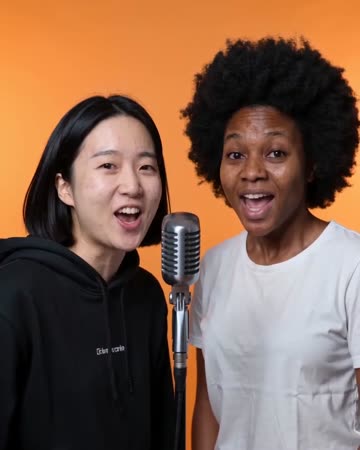
Choose an AI Rap Tool: Song First or Video First?
Compare Suno’s song workflow with Glinno’s photo performance, then prepare your own brief and lyrics.
Creative guides4 Rap Duos: Learn the Exchange Through Their Tracks
Start with OutKast, Mobb Deep, UGK and Run The Jewels, using specific tracks to listen for leads, responses and handoffs.
Creative guides