Turn two photos into a shared mic moment
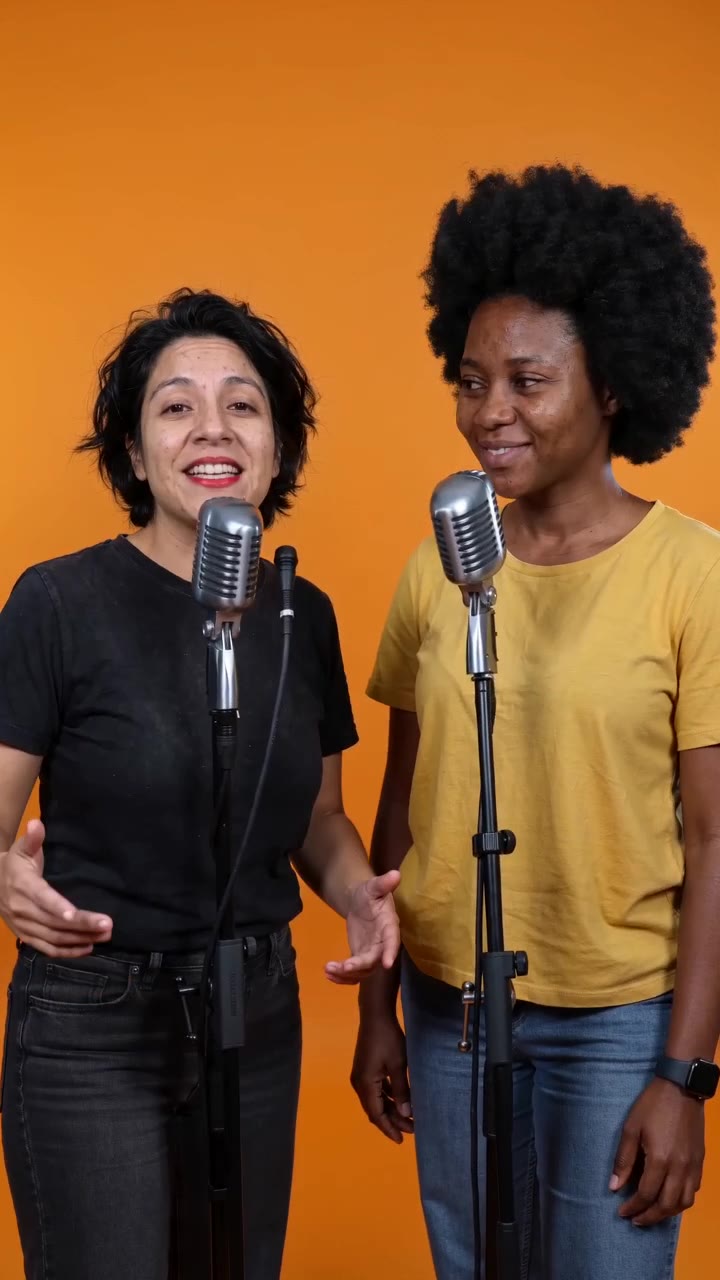
Put you and a friend side by side in a warm orange recording booth. Hotel Lobby AI turns your photos into a short two-person rap performance, with a standing microphone for each person, small rhythmic gestures and an original beat.
You do not need a recording of either person singing or dancing. Start with separate portraits or a photo of you together; the preset supplies the scene and performance direction. The appeal is the exchange between two familiar faces: one takes a vocal turn while the other reacts, then they exchange vocal roles.
Inside the Hotel Lobby AI performance
The orange-booth style keeps attention on the people and their interaction. It is a microphone performance with a simple stage, rather than a tour of a hotel or a complicated dance routine.
A warm orange booth
A minimal orange background and two standing microphones frame the pair. The uncluttered set gives faces, shoulders and hand gestures room to read.
Two people, alternating turns
One person leads a brief vocal turn while the other listens and nods, followed by an exchange. Small gestures and a shared look toward the camera shape the performance.
Original rap and a backing beat
New creations include AI-generated rap vocals and a warm hip-hop backing beat. The vocals are generated for the video; a photo does not supply your real speaking or singing voice. The named Hotel Lobby track is not included.
A short clip in your chosen format
The starting selection is 12 seconds, 720p and vertical 9:16. Open Advanced to see the lengths, resolutions and aspect ratios supported by your selected model. The generation button shows the current credit cost.
How to make your Hotel Lobby AI video
Choose both performers
Use Two separate photos to add one clear portrait per person, or switch to One photo together for a shared image. You can use photos taken in different places or at different times.
Check the prepared composition
With separate portraits, review the side-by-side composition prepared from your two sources. Check that both people are visible and their faces are similar in size. For a shared photo, keep both faces and shoulders clear.
Set the video and check the cost
Keep the default settings or open Advanced to choose another supported model, resolution, length or format. A vertical frame suits a phone feed; a wider frame gives a pair more horizontal room. Review the displayed total before generating.
Generate, watch and download
Sign in when you are ready to generate. Follow the task result on the page, then watch the full clip with sound. Check both faces, vocal turns and microphone overlaps before downloading and adding your own captions in an editor.
Four ways to make the clip yours
Use the performance as your visual starting point, then add the personal message in your edit. This page uses a fixed performance preset and has no field for custom lyrics, names or a song topic.
A best-friend introduction
Open a shared account or friendship montage with the two of you on the mic. Add your nicknames in the edit, keeping the text away from faces and microphones.
A playful couple clip
Turn two portraits into a shared performance for an anniversary montage. Follow it with a real photo or a short message to connect the stage scene with your own story.
An entrance for a birthday edit
Use the rap performance as an energetic opening, then add the birthday name and greeting as captions. For a performance with a birthday-themed greeting, explore Birthday Rap instead.
A short creator teaser
Introduce co-hosts or tease a collaboration with a brief stage moment. Cut to your actual recording afterwards; add your own title card rather than relying on text inside the generated scene.
Give both faces a clear starting point
The source photos do more than identify the people: they also shape the starting composition. A balanced pair gives you a clearer basis for checking the generated performance.
- Choose similar framing. Two front-facing or slightly turned upper-body portraits with similarly sized faces are easier to balance than a close-up paired with a distant full-body shot.
- Keep eyes, mouths and shoulders visible. Avoid sunglasses, strong beauty filters, motion blur and hands covering the lower face; mouth detail matters for a microphone performance.
- Check both sides of the frame. In a shared photo, avoid overlapping faces or one person standing far behind the other. In separate-photo mode, review the composition before submitting.
In the finished video, watch both people through the whole clip. If a face drifts, a hand crosses a mouth or a microphone obscures a performer, try a clearer or more evenly framed source photo for a new version.
Hotel Lobby AI: questions before you create
Can we upload our photos separately?
Yes. Choose Two separate photos and add one portrait for each performer. The form prepares a side-by-side starting image from the two sources. You can also choose One photo together and upload a shared photo.
Do we need costumes, microphones or a recorded performance?
No. Start with clear photos of the two people. The preset creates the orange booth and microphone performance; you do not need to film yourselves rapping or buy stage props.
Does it use the original Hotel Lobby song or my real voice?
The effect generates a short original rap and backing beat, rather than adding the named song. Voices are AI-generated: uploading a photo does not record or clone your real voice. Listen to the result before saving your final edit.
Can I enter my own lyrics, names or song topic?
This effect page has no custom lyrics, name or topic field. It uses the fixed two-person performance preset. Add a personal message as captions after downloading, or use a themed effect such as Birthday Rap for that direction.
How long is the video, and can I change the format?
The default is 12 seconds at 720p in vertical 9:16. Advanced shows the options supported by the model you select, including available lengths, resolutions and aspect ratios. The cost updates with your selection.
Will both people look exactly like their photos?
The photos guide the appearance, but AI can change facial details and movement. Use clear, balanced portraits and review both performers in the finished clip, especially mouths, hands and microphone overlaps.
Can I download it and post it on social media?
Completed videos have a download action on the result card. Save the file, add captions or combine it with other footage in your editor, then upload it yourself to your chosen platform. Glinno does not post to social accounts for you.
Where can I see the price, and what happens if generation fails?
Check the total credits on the generation button before you submit. The amount depends on your selected model and output settings. Credits are deducted when the task is created; if the task is confirmed failed, its deducted credits are returned.
Try a different performance direction
Keep the two-person idea and choose a different setting or occasion for your next clip.
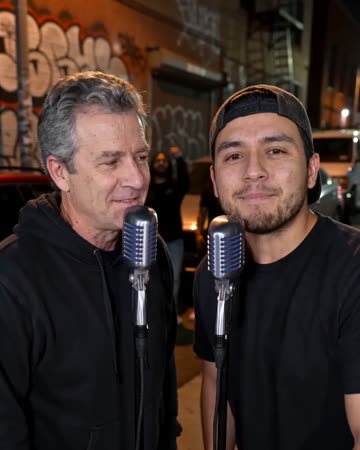
AI Rap Battle
Native-audio performance · photo to video
A blue-and-red studio, playful alternating lines and friendly reactions for a rap face-off.
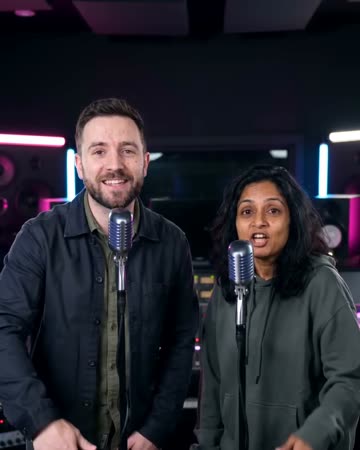
AI Music Video
Native-audio performance · photo to video
A warm marble lobby and original sung phrases for a more melodic performance.
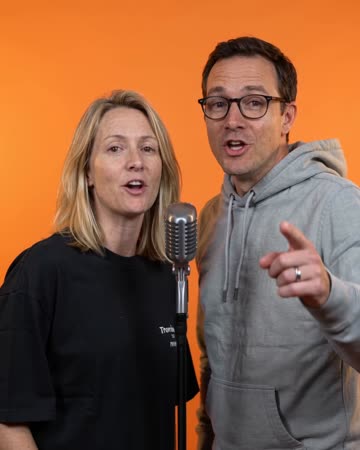
Birthday Rap Video
Native-audio performance · photo to video
A birthday-themed rap greeting in a studio, with a celebratory exchange between the pair.
Your next shared moment starts with two photos
Choose the two performers, check the composition and make your orange-booth clip.
Create our Hotel Lobby video