Make an AI Rap Video: Quick Clip or Your Own Lyrics
Choose a photo preset or an audio-first workflow, then organize an original four-line verse into a twenty-second edit.
Decide what must be exact
A playful “put us on stage” clip can begin with a photo preset. A greeting that must contain a friend’s name and your exact verse should begin with audio. Names, numbers and the closing wish deserve checking before you build the visuals.
Route one: a quick photo performance
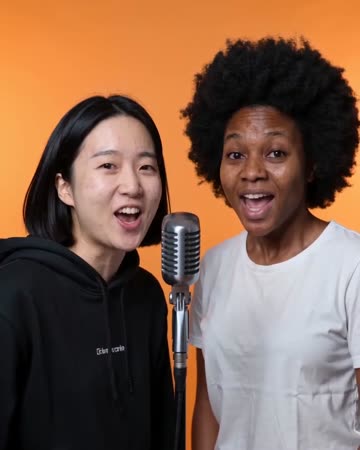
Use a clear shared photo in the Glinno rap effect, choose framing and five or ten seconds, check the cost and generate.
The preset supplies performance and audio direction. Its form has no lyric or name field. Add an exact greeting as a caption or separate recording; naming the uploaded file after your intended lyrics does not turn it into an instruction.
Keep the idea small: an ordinary photo turning into a stage performance is enough for one short clip.
Route two: finish your own words first
Give each line a role: introduce the person, add a detail, turn toward the wish and close. Here is an original example:
You saved that seaside map for another year,
We kept saying “soon” while the date stayed unclear.
This time let’s book it, let the old plans go,
One photo together where the sea winds blow.
Read it aloud before producing music. Remove words where you stumble. Split an overcrowded line or allow more time rather than speeding through every phrase.
If you use a music generator, choose a mode with actual lyric input. Suno documents such a field in Custom mode; the rap-tool comparison explains how that differs from a topic or photo input. Suno instructions
Choose performance or supporting visuals
A story edit with captions can use photos, travel footage and reactions without making a face sing every word. A singing character requires closer alignment between voice and performance.
For the latter, prepare a performance video and inspect tools that accept it. Runway Act-Two combines a driving performance with a character image or video, a different input requirement from a photo preset. Official input documentation
Arrange a twenty-second edit
Adjust these timings to the actual recording:
- 0–3 seconds: the ordinary photo and the recipient’s name.
- 3–8 seconds: a map and an old seaside photo for the opening detail.
- 8–15 seconds: a stage or reaction shot as the wish becomes a plan.
- 15–20 seconds: a shared photo and departure date, with room to finish the last line.
If a generated clip contains its own music, lower or mute it before adding your main recording. Split captions into readable phrases instead of placing the whole verse on a five-second shot.
Review before export
Check names and numbers, voice intelligibility, who appears to be speaking, readable captions and the complete ending. Replay the saved file on a phone.
Fix the responsible layer: wording in the lyrics, volume in the mix, identity in the source photo and a cut-off ending in the edit. You do not need to regenerate every element to correct one problem.
Choose a related video effect
AI Rap Generator
Native-audio performance · photo to video
Keep exploring
Choose an AI Music Video Tool: Song to Final Edit
Compare the roles of Suno, Runway, CapCut and Glinno, then plan a 30-second music video around the inputs you already have.
Creative guidesChoose an AI Rap Tool: Song First or Video First?
Compare Suno’s song workflow with Glinno’s photo performance, then prepare your own brief and lyrics.
Creative guides
4 Rap Duos: Learn the Exchange Through Their Tracks
Start with OutKast, Mobb Deep, UGK and Run The Jewels, using specific tracks to listen for leads, responses and handoffs.
Creative guides