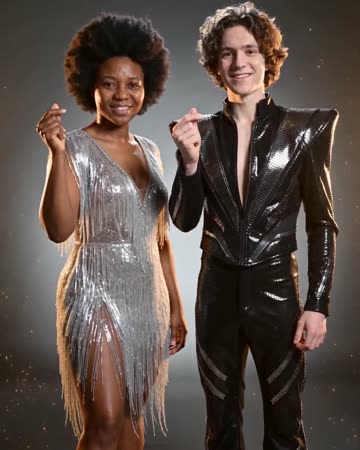
Outfit Switch AI: Two Finger Snaps, Two Style Reveals
Change from the source look to casual clothing and then formal eveningwear with two finger snaps and brief flashes. The studio position stays stable so the clothing contrast is easy to see.
Build a fictional style transformation or bridge an ordinary look to a real outfit reveal. Use actual garment footage when you need viewers to assess a purchasable item.
Inside this effect
Two snaps, two changes
In a clean studio, a finger snap and flash reveal a different casual outfit; a second snap reveals formal eveningwear. Face, hair and body position remain the continuity anchors.
What makes the composition readable
Use the silhouette to judge continuity: shoulders, waist and feet should not jump to unrelated positions as garments change. A busy background makes those shifts harder to notice.
Sound in a new creation
Snap-aligned transition effects and a beat accompany the two reveals.
Choose the output for your edit
New drafts start at 12 seconds, 720p and vertical 9:16. Advanced shows the models and compatible lengths, resolutions and formats. Check the total credits before generating; the options follow the selected model.
From source photo to finished clip
Start with a solo or shared photo, or choose two separate sources when the idea includes a pair. Confirm the crop and current settings before generating.
Set the before outfit
Choose a clean source with a readable waist and shoulders.
Track the silhouette
Review sleeves, hem and feet through the clothing transition.
Choose the style reveal
Cut after the new look settles and connect to real styling material if needed.
Ways to use the result
Casual to formal
Let the final outfit become a transition into an actual event or style introduction.
A style contrast
Compare the silhouette before and after each flash, adding descriptive labels outside the changing clothes.
Prepare the source for this movement
- Show the full clothing outline.
- Keep hands away from complicated fabric folds.
- Keep the fingers and space around the hands visible for the snap transitions.
The generated outfit is not a fitting or exact garment replacement. Brands, fabric patterns and proportions may change, with no uploaded garment-matching control.
Frequently asked questions
Can I upload a jacket I want to try?
This form takes the person's photo, not a separate garment reference for fitting.
Will the body measurements stay accurate?
Do not treat generated proportions as a measurement or fit prediction.
Why do sleeves merge with fingers?
Cloth and hands can overlap around each finger snap. Inspect fingers, cuffs and garment edges during both reveals.
When should I use Fan Outfit Change instead?
Use Fan Outfit Change for an overhead blade-occlusion reveal; this page uses frontal finger snaps and flashes.
Does the change happen during a turn?
No. This current direction uses two finger snaps and flashes, finishing in formal clothing.
Can I keep my exact branded jacket?
There is no uploaded-garment matching. Use real clothing footage when the exact garment is the point.
Where is the cost shown, and what if generation fails?
The generation button shows the total for your selected model and output settings. Credits are deducted when the task is created; credits for a task confirmed failed are returned. Review the displayed total rather than assuming every model costs the same.
Explore another direction
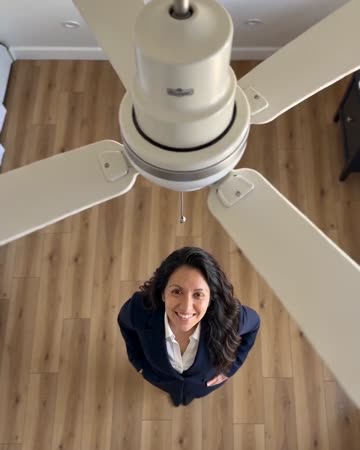
Ceiling Fan Outfit Change AI
outfit collections
The view stays overhead as slowly turning fan blades pass across the lens. Each full occlusion reveals another outfit while the subject’s position and identity aim to remain stable.

AI Halloween Costume
seasonal outfit edits
Everyday clothing becomes a playful Halloween outfit under warm party light. One natural turn and a small light cue carry the reveal while the face remains open and recognizable.
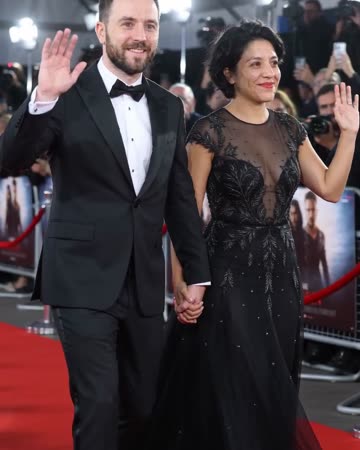
Red Carpet AI
event teasers
Formal eveningwear, a small forward step and a wave establish the arrival. Camera flashes alternate around the source people while the face and body remain the visual anchors.
Outfit Switch AI
Choose a clean source with a readable waist and shoulders.
Create this effect