Live Concert AI: A Spotlight Moment for Your Stage Edit
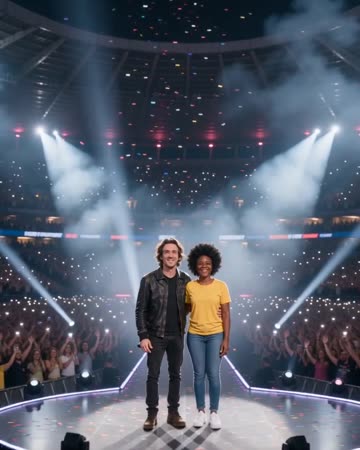
A spotlight and distant audience lights suggest a live stage without needing a crowded close-up. The subject's short wave provides a readable connection to the imagined audience. The preset requests original stage music and audience cheers.
Use the shot in a fictional tour announcement or a stage-themed music edit. Pair it with your own performance material rather than presenting it as a real venue recording.
Inside this effect
From stadium scale to the performer
Audience lights establish a wide stadium before the camera approaches the source performers. Sweeping spotlights and light confetti lead to a shared wave toward the crowd.
What makes the composition readable
Keep the performer distinct from the bright background. Hands crossing a microphone or face are more important to inspect than the number of lights in the audience.
Sound in a new creation
Original stage music and audience cheers provide atmosphere; they are not a recovered live show soundtrack.
Choose the output for your edit
New drafts start at 12 seconds, 720p and vertical 9:16. Advanced shows the models and compatible lengths, resolutions and formats. Check the total credits before generating; the options follow the selected model.
From source photo to finished clip
Start with a solo or shared photo, or choose two separate sources when the idea includes a pair. Confirm the crop and current settings before generating.
Choose a stage-ready pose
Use a clear standing portrait with readable hands.
Review the audience connection
Inspect the wave, microphone overlap and facial continuity.
Build the concert context
Listen to the stage music, crowd cheers and reverberation, inspect the wave and keep the fictional stage context clear.
Ways to use the result
An imagined tour teaser
Use the stadium reveal as a fictional concept shot, with real tour information added separately only when accurate.
A performer montage climax
Move from intimate real footage into the wide stage and return to the performer’s actual work.
Prepare the source for this movement
- Show the upper body and at least one hand.
- Keep the face visible without heavy backlight.
- Leave room above the subject for stage lighting.
The stage, audience, cheers and music are generated and do not verify attendance or a real show. Review instrument motion, vocal detail and audio alignment shot by shot.
Frequently asked questions
Is this a recording of a real concert?
No. It is a generated stage scene built from your source photo.
Can it produce crowd cheering?
It requests low audience cheers, stage reverberation and original music. This is model-generated atmosphere, not audio from a real concert.
Can I choose a specific venue?
There is no venue-selection control, and generated architecture should not be treated as an accurate location.
Why does the microphone hide the mouth?
Occlusion can develop during motion. Review the usable portion rather than assuming exact singing visibility.
Can I choose the audience count?
No crowd-count control is supplied. The audience is atmosphere rather than an attendance statistic.
Is the camera static on the stage?
The direction begins wide and moves toward the performer, so inspect both the reveal and the close finish.
Where is the cost shown, and what if generation fails?
The generation button shows the total for your selected model and output settings. Credits are deducted when the task is created; credits for a task confirmed failed are returned. Review the displayed total rather than assuming every model costs the same.
Explore another direction
Red Carpet AI
event teasers
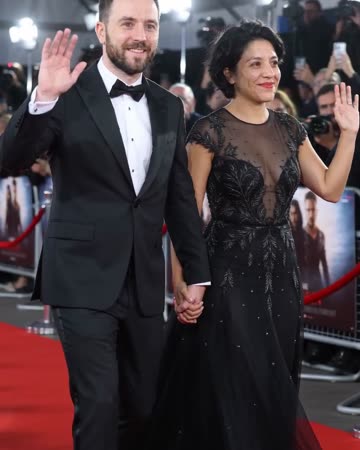
Formal eveningwear, a small forward step and a wave establish the arrival. Camera flashes alternate around the source people while the face and body remain the visual anchors.
Studio Booth AI
Native-audio performance · photo to video
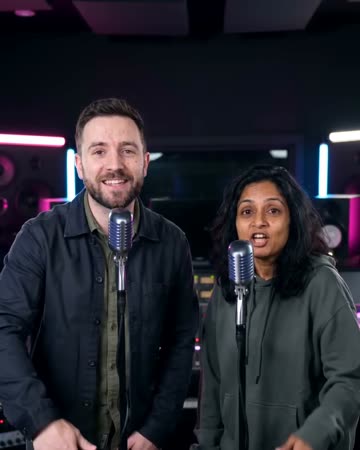
A dark recording booth and soft rim light frame natural microphone gestures. Equipment stays softly out of focus so the mouth, hands and expression carry the intimate performance.
AI Music Video
Native-audio performance · photo to video
Warm marble, receding chandeliers and a gradual approach frame a brief vocal performance. A solo source keeps one singer; two people exchange phrases and glances at a shared microphone.
Live Concert AI
Use a clear standing portrait with readable hands.
Create this effect