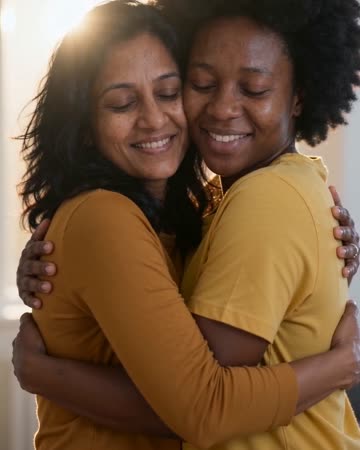
AI Hug: Prepare Two People for a Readable Embrace
A hug brings bodies and arms into contact, making overlap the central challenge. This preset aims for a slow approach and restrained embrace while keeping the camera steady. The preset requests soft music and natural clothing sounds.
Use the embrace as the emotional close of a reunion edit or a quiet greeting. Keep the preceding context so the generated hug reads as a creative moment.
Inside this effect
The approach before the embrace
The pair move closer and bring their arms together while the camera stays steady. Leave shoulder space in the starting composition so the contact can develop visibly rather than beginning with tangled limbs.
What makes the composition readable
Whether you use separate portraits or a shared photo, keep both shoulders and the space between the bodies readable. A tightly intertwined starting pose leaves less information about each arm.
Sound in a new creation
Soft music and natural clothing sounds accompany the embrace, without an invented spoken conversation.
Choose the output for your edit
New drafts start at 12 seconds, 720p and vertical 9:16. Advanced shows the models and compatible lengths, resolutions and formats. Check the total credits before generating; the options follow the selected model.
From source photo to finished clip
Add one clear portrait per person or use a shared photo. In separate-photo mode, check the prepared two-person composition before submitting.
Prepare one shared image
Add a portrait for each person or use one shared image, then inspect the prepared two-person composition.
Follow the arms into contact
Inspect elbows, hands and face occlusion throughout the approach.
Choose the natural endpoint
Trim before any unstable hold and finish with a short caption if needed.
Ways to use the result
A reunion ending
Place the embrace after real travel or reunion photographs so the imagined movement has clear context.
A quiet greeting
Keep one short message outside the faces and let the slow contact carry the emotional moment.
Prepare the source for this movement
- Include both people from roughly the waist up.
- Keep shoulders and arms visible before contact.
- Avoid a large face-size mismatch.
An embrace is inferred from a still, so exact body contact and hand placement are not guaranteed. Separate portraits are prepared as one side-by-side start image; preview the composition before generating.
Frequently asked questions
Can the pair start from separate portraits?
Yes. Add one source per person and inspect the prepared composition, or use a photo together.
What if the arms merge?
Try sources with clear shoulder outlines and less overlap. Review the full contact, not only the closing still.
Will the faces remain visible during the hug?
Not necessarily. Choose a starting angle with visible faces and review the moment they move closer.
Is this suitable for a reunion keepsake?
It can be a creative keepsake, but it should not be mistaken for recovered footage of an actual embrace.
Where is the cost shown, and what if generation fails?
The generation button shows the total for your selected model and output settings. Credits are deducted when the task is created; credits for a task confirmed failed are returned. Review the displayed total rather than assuming every model costs the same.
Explore another direction
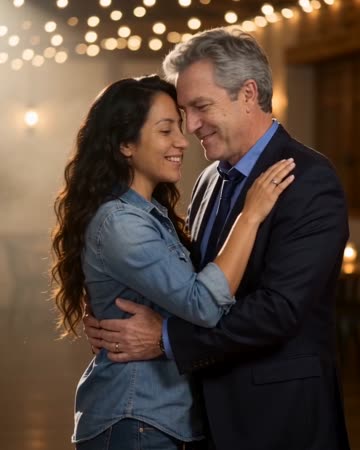
Slow Dance AI
anniversary
Two people take a comfortable dance hold, sway together and complete a gentle turn beneath warm lights. A slow camera arc keeps attention on the faces before a relaxed embrace.
AI Family Video
family keepsakes
Under string lights, the source pair take a comfortable dance hold, sway, make a small shared turn and face the camera in a close pose. This page focuses on that two-person moment.
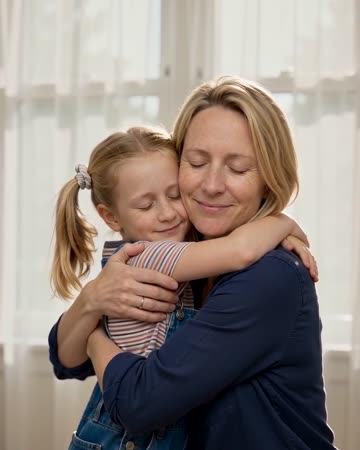
Hug Your Younger Self
growing-up keepsakes
Your present and younger selves move into a gentle embrace before soft white curtains. Authentic photos of both ages provide the identities; the visual feeling is a Polaroid slowly coming to life.
AI Hug Generator
Add a portrait for each person or use one shared image, then inspect the prepared two-person composition.
Create this effect