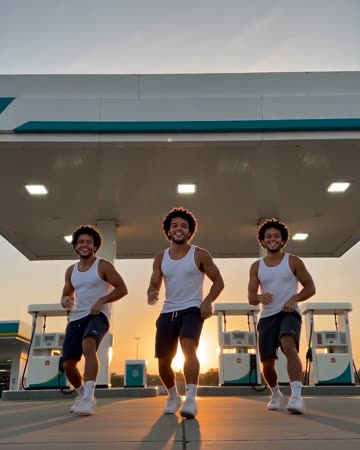
Gas Station AI: Stage a Sunset Forecourt Entrance
Make a sunset forecourt sequence with a wide dance, a smiling selfie and a car-door finish. The source lead stays recognizable across the three concise views.
Use the entrance in a casual outfit edit or a road-trip mood sequence. Add real trip details separately instead of treating the generated station as a visited location.
Inside this effect
Three views at golden hour
A wide forecourt dance cuts to a smiling selfie close-up, then to the same lead beside an open car door. A second visible source can remain as a consistent companion.
What makes the composition readable
Visible shoes and ground contact help the step read clearly. A tightly cropped torso leaves the model guessing how the unseen legs support the turn.
Sound in a new creation
Original rhythmic music and street ambience support the forecourt sequence, without the trend’s original commercial track.
Choose the output for your edit
New drafts start at 12 seconds, 720p and vertical 9:16. Advanced shows the models and compatible lengths, resolutions and formats. Check the total credits before generating; the options follow the selected model.
From source photo to finished clip
Start with a solo or shared photo, or choose two separate sources when the idea includes a pair. Confirm the crop and current settings before generating.
Choose a grounded pose
Use a full-body source with clear footing.
Check the three-shot sequence
Review feet in the wide dance, facial detail in the selfie and hand contact at the open car door.
Finish the travel mood
Replay the groove and scene transitions, then add factual itinerary captions or continue editing for a particular track.
Ways to use the result
A road-trip introduction
Use the wide-to-close sequence before real travel footage, with the true route added separately.
A casual entrance
Keep captions for the car-door finish so the earlier dance and selfie remain uncluttered.
Prepare the source for this movement
- Show legs and shoes fully.
- Keep clothing outlines separate from the background.
- Leave room in the direction of the step.
The station and signs are generated, not a verified branded location. Original backing music is not the trend's original track; the shot does not demonstrate fueling safety or reproduce exact choreography.
Frequently asked questions
Must I photograph myself at a station?
A clear full-body portrait is the input; the preset supplies the setting direction.
Can it show a real station logo?
Do not rely on generated signs for branding. Review and replace any misleading detail in your final edit.
Why can feet slide during the wide dance?
Ground contact is inferred from one image. A clear standing pose helps, but unstable foot motion should be rejected.
Is the trend music included?
It requests an original groove, light footfalls and street ambience. If you need a particular trend track, continue editing the downloaded clip for your publishing needs.
Will it show all three views?
The preset directs a wide dance, selfie close-up and car-door finish within the selected length. Review whether each beat remains understandable.
Can I choose a car or station brand?
There is no brand selector. Use real footage if a specific vehicle or business identity must be accurate.
Where is the cost shown, and what if generation fails?
The generation button shows the total for your selected model and output settings. Credits are deducted when the task is created; credits for a task confirmed failed are returned. Review the displayed total rather than assuming every model costs the same.
Explore another direction
Raindance AI Trend
Native-audio performance · photo to video
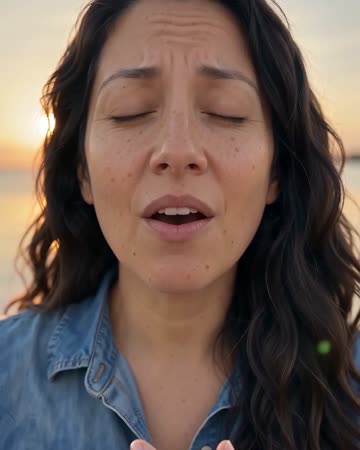
A brief source opening cuts to a warm singing close-up, then a wider view of the same person seated on a wooden pier. Face and outfit continuity connect the shots through breeze and calm water.
AI Dance Video
Native-audio performance · photo to video
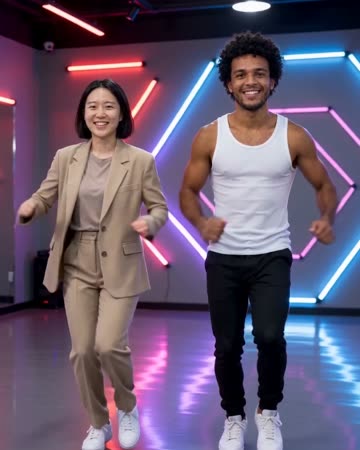
A neon-lit studio frames complete bodies performing an original short sequence. Side steps, shoulder bounces and light arm gestures lead into a settled final pose with stable spacing.
Car Jump AI Video
action shorts
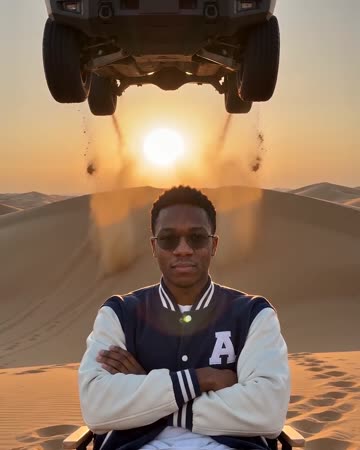
A concept SUV makes one slow-motion leap over a seated subject in an open desert, clears them without contact and lands beyond. The low view makes the fictional scale and trajectory readable.
Gas Station AI Trend
Use a full-body source with clear footing.
Create this effect