Bullet Time AI: Separate the Frozen Subject From Camera Motion
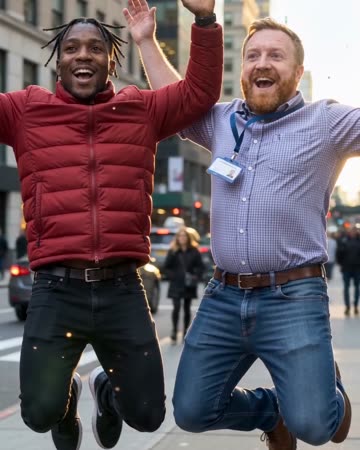
Bullet time reads as a contrast: the subject is nearly frozen while the camera moves in a short arc. Background parallax gives the viewer the sense of moving around the pose. The preset requests slow-motion effects that follow the camera arc.
Use it to emphasize a pose, a character introduction or a pause in a fictional action sequence. Let the next cut resume motion so the freeze has a clear purpose.
Inside this effect
A leap held while the camera moves
The source subjects leap, slow to an almost suspended pose and remain airborne during a short lateral camera arc. Shifting background parallax supplies the sense of moving around the moment.
What makes the composition readable
A single photo does not contain the hidden side of a face or object. Keep the pose simple and inspect new surfaces as they become visible during the arc.
Sound in a new creation
A restrained slowed-air sweep and low cinematic pulse follow the arc, rather than a spoken action cue.
Choose the output for your edit
New drafts start at 12 seconds, 720p and vertical 9:16. Advanced shows the models and compatible lengths, resolutions and formats. Check the total credits before generating; the options follow the selected model.
From source photo to finished clip
Start with a solo or shared photo, or choose two separate sources when the idea includes a pair. Confirm the crop and current settings before generating.
Choose the freeze pose
Use a pose readable without needing a previous action clip.
Inspect the arc
Compare face shape and background layers as new angles appear.
Resume the sequence
Cut from the frozen emphasis into a separate moving shot.
Ways to use the result
A character emphasis
Place the suspended pose at a turning point and resume ordinary motion immediately afterwards.
An action-style title
Show the title outside the body silhouette while the short arc reveals depth behind the figure.
Prepare the source for this movement
- Keep the complete silhouette visible.
- Choose a background with near and far layers.
- Avoid complex foreshortened arms.
This is generated camera motion, not a multi-camera capture. Hidden geometry, logos and side-profile details may be invented; a complete orbit is not guaranteed.
Frequently asked questions
Is this just ordinary slow motion?
The direction emphasizes camera movement around a nearly still pose rather than slowing an uploaded action video.
Can I request a full 360-degree orbit?
There is no orbit-angle control; the preset aims for a short arc.
Why does the side of the face change?
Unseen facial geometry must be inferred from the source photograph.
What makes parallax easier to see?
Distinct foreground and background layers provide better visual reference than a completely flat backdrop.
Does the current direction include a jump?
Yes. It begins with a leap before the near-suspended camera moment. Leave space around feet, arms and head in the source.
Can I make it orbit a frozen car instead?
This preset follows the source subjects’ airborne pose. It has no independent object or orbit-target selector.
Where is the cost shown, and what if generation fails?
The generation button shows the total for your selected model and output settings. Credits are deducted when the task is created; credits for a task confirmed failed are returned. Review the displayed total rather than assuming every model costs the same.
Explore another direction
Car Jump AI Video
action shorts
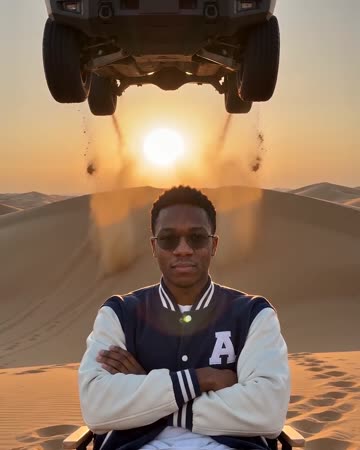
A concept SUV makes one slow-motion leap over a seated subject in an open desert, clears them without contact and lands beyond. The low view makes the fictional scale and trajectory readable.
Levitation AI
fantasy clips
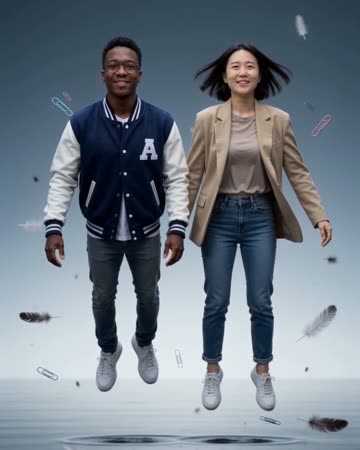
A steady wide view shows the subject rising gently above the ground. Subtle clothing movement supports the floating impression while the visible floor provides the reference for height.
AI Clone Video
playful introductions
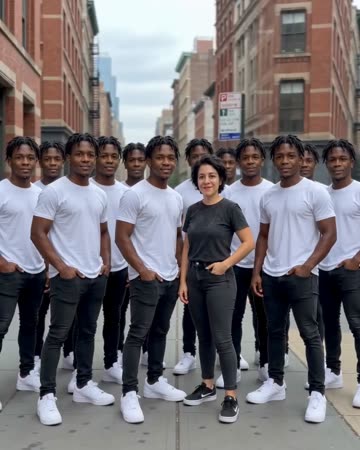
Copies emerge behind the source people in successive rows while the camera eases backward. A solo source keeps one original in front; a two-person source retains both original people.
Bullet Time AI
Use a pose readable without needing a previous action clip.
Create this effect